Details
The Details page allows you to configure the basic settings for a tenant.
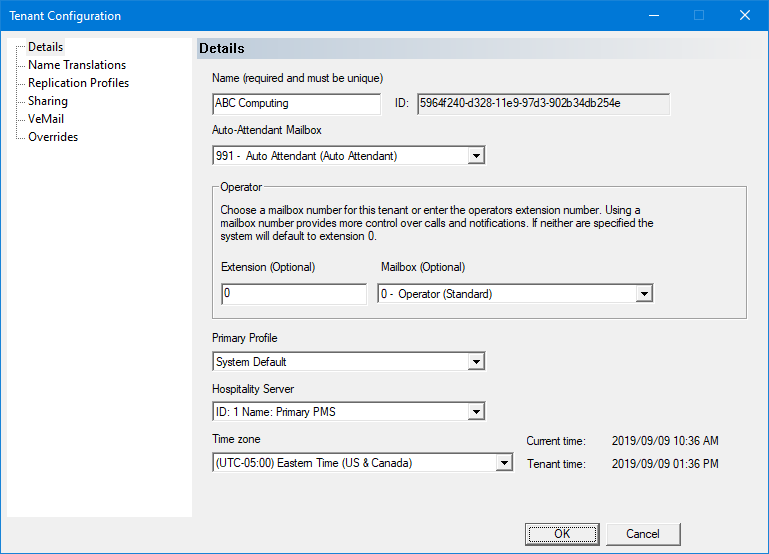
Settings include:
| Setting | Default | Description |
|---|---|---|
| Name | (blank) | Set or change the name for this tenant. Required. You must enter a unique name before you save the tenant configuration. If you do not, a warning dialog will be displayed when you click OK and you will be returned to the Tenant Configuration dialog so you can enter the name. For the default tenant created by the Setup wizard, the Site Name that the wizard requires you to enter will be used as the tenant name. |
| ID | (blank) | Tenant ID used internally. Read-only. The ID is created automatically the first time you save a newly added (or copied) tenant. |
| Auto-Attendant Mailbox | – None – | Select the system mailbox to use for the auto attendant, using the list box provided. For the default tenant created by the Setup wizard, the wizard will create and assign mailbox 991 as the auto attendant. |
| Operator - Extension | 0 | Enter the operator's extension for this tenant. Optional. By default, the dialog will suggest 0 as the extension; if you delete it and leave the field blank, there will be no operator extension unless you assign an operator mailbox and it has a valid extension. |
| Operator - Mailbox | – None – | Select the operator's mailbox using the list box provided, if you want to make it possible for caller's to leave a message for the operator (otherwise, you can leave it set to None). |
| Primary Profile | System Default | Select the primary profile to associate with this tenant. If needed, additional profiles may be assigned to this tenant on the Replication Profiles page. |
| Hospitality Server | ID: 1 | Select the hospitality server to use for this tenant. If this is a non-hospitality tenant, you can set this to –none–. |
| Time zone | Same as system | If a time zone other than Same as system is chosen, all dates and times in VeMail and playback of dates and times will be converted to the time zone of the tenant. Only time zones supported by Windows will be shown. Due to the difficulty in calculating date and times care should be taken when changing this field. |
Any changes made will be saved when you click OK (as long as the Name field contains a unique name).